
How to Automate MFA for Cloud Security
Automate MFA across cloud environments to enforce consistent policies, enable risk-based adaptive authentication, and streamline CLI/CI/CD workflows.

Automating Multi-Factor Authentication (MFA) enhances cloud security while reducing manual effort. MFA requires users to verify their identity through multiple factors like passwords, devices, or biometrics. However, manual MFA can disrupt workflows, especially for DevOps teams managing CI/CD pipelines or Command Line Interface (CLI) access. Automation solves this by enforcing consistent MFA policies across systems, minimizing friction, and ensuring compliance. For more details on how these tools work, see our cloud security FAQ.
Key takeaways:
- Why automate MFA? Manual MFA is time-consuming and prone to errors, especially in large-scale environments. Automation ensures security without slowing down productivity.
- How it works: Automation tools like Puppet, Ansible, and Terraform enforce MFA policies, prevent configuration drift, and handle temporary credentials for CLI and unattended workflows.
- Benefits: Streamlined security, reduced manual intervention, and better protection against breaches, especially for high-risk tasks.
- Steps to get started: Assess your current MFA setup, automate policy enforcement, and integrate risk-based and adaptive authentication methods.
What Is MFA Automation?
MFA automation relies on tools, scripts, and Policy as Code (PaC) to enforce consistent multi-factor authentication (MFA) settings across your IT systems. Instead of configuring MFA manually for each system, you define Identity and Access Management (IAM) rules in a centralized code repository. This approach ensures uniform security policies on a large scale. Automation agents then monitor your systems and automatically apply or correct MFA configurations without requiring human input. These scripted rules create a scalable and reliable framework for enforcing MFA.
The difference between manual and automated MFA becomes especially clear in complex environments. As Robin Tatam from Puppet explains, enforcing MFA manually across diverse systems - like Linux, Windows, macOS - and multiple MFA providers such as Okta, Duo, or Google Authenticator, does not scale well.
With automation, technical hurdles that slow down developers are minimized. For example, wrapper scripts for Command Line Interface (CLI) access can automatically request and cache temporary credentials. These credentials, obtained through automated Security Token Service (STS) calls, can remain valid for up to 36 hours, reducing the need for frequent manual verification.
Benefits of Automating MFA
One key advantage of automation is its ability to prevent configuration drift. This drift occurs when security settings gradually deviate from their intended state due to manual changes. Automated agents, running checks every 30 minutes, ensure that MFA policies stay aligned with the desired configuration. If unauthorized changes disable MFA, the system automatically corrects them, leaving little room for security gaps.
Automation also enables real-time adjustments using conditional access rules. For example, stricter MFA requirements can be enforced for remote VPN users, while users on an internal network may have simpler access. This context-aware approach adapts authentication requirements dynamically, eliminating the need for manual updates.
For DevOps teams, automation resolves a critical challenge. Tools like Ansible and Terraform are designed for unattended execution, but interactive MFA prompts can disrupt workflows. As Nawaz Dhandala from OneUptime points out:
Ansible cannot type a verification code interactively. This breaks automation unless you plan for it.
By automating credential retrieval, these tools can maintain security standards without manual intervention, ensuring smooth operations in cloud environments while speeding up development workflows.
How MFA Automation Works with Cloud Security Tools
MFA automation integrates seamlessly with existing infrastructure through several methods. When MFA policies are written as code, they become version-controlled and can be validated whenever infrastructure code changes. This integration with CI/CD pipelines blocks deployments that fail to meet security requirements. At the same time, automation manages the connectivity between authenticators and identity providers - ensuring services are operational, DNS addresses are resolved, and certificates are distributed to maintain secure trust relationships.
For platforms like AWS, automation leverages Security Token Services to programmatically request and rotate temporary MFA-authenticated credentials. This reduces the risks associated with static, long-term keys.
Automation also enhances role-based access control. For example, cloud roles can be configured with the aws:MultiFactorAuthPresent condition, requiring MFA authentication only for high-privilege administrative tasks. This ensures stronger security where it’s most critical, without adding unnecessary friction to routine operations.
| Integration Type | Mechanism | Benefit |
|---|---|---|
| Infrastructure as Code | Terraform / OpenTofu | Ensures MFA is required for state file access and resource modifications |
| Configuration Management | Puppet / Ansible | Enforces consistent MFA settings across servers and corrects unauthorized changes |
| Identity Federation | AWS SSO / Okta / Azure AD | Leverages existing IdP MFA support for CLI and console access |
| Operating System | PAM (Linux) / Active Directory (Windows) | Integrates MFA into core OS authentication layers |
Next, we’ll assess your current MFA setup to identify where automation can make the most impact.
sbb-itb-d663cbd
Evaluating Your Current MFA Setup
Before diving into automation, take stock of your current MFA (Multi-Factor Authentication) setup. This step is crucial for ensuring a smooth transition to automated workflows that strengthen cloud security while streamlining DevOps processes. Many organizations juggle a mix of MFA tools, which makes manual enforcement a cumbersome task. As Robin Tatam from Puppet puts it:
Configuring MFA is a go-to measure for system hardening, but MFA enforcement can get unruly, especially at the scale required by enterprise IT.
List Your Current MFA Methods
Start with a detailed inventory of your existing MFA configuration. This creates a baseline for any automation efforts. Use native tools to gather data on all users and their MFA statuses. For AWS environments, you can generate a user report with these commands:
aws iam generate-credential-report
aws iam get-credential-report
This will provide a CSV file containing relevant user details. If you're comfortable with Python, the boto3 library can help automate checks to flag users with console access but no MFA device assigned. For individual users, you can retrieve their MFA device details using:
aws iam list-mfa-devices --user-name <username>
This command will return the serial number or ARN of the assigned MFA devices.
Classify the MFA methods in use. These typically fall into three categories: virtual (authenticator apps), hardware (physical tokens like YubiKeys), and FIDO2 keys. Make sure MFA is enforced for both web console logins and CLI access. Many organizations overlook the importance of securing programmatic access. As Nawaz Dhandala from OneUptime emphasizes:
When an attacker gets hold of an IAM user's password, MFA is the last line of defense.
Check Compatibility with Cloud Identity Providers
Not all MFA methods are equally suited for automation. Compatibility depends on factors like whether the device supports command-line management or temporary credential operations, such as GetSessionToken or AssumeRole. For example:
- AWS allows virtual MFA devices to be created and synced via CLI or API.
- FIDO security keys, however, can only be enabled through the Management Console and cannot be used with STS API operations to request temporary credentials.
Test your setup to ensure the aws:MultiFactorAuthPresent condition key is triggered correctly. This is critical for implementing policies that automatically block sensitive actions unless an MFA prompt has been recently satisfied. Additionally, confirm that your MFA authenticator can communicate with your Identity Provider. Check that your servers can resolve the IdP's DNS address and that the necessary certificates are distributed to maintain trust.
If you're still relying on SMS-based MFA, it’s time to migrate to virtual TOTP apps or hardware security keys. SMS-based MFA is being phased out by many providers due to security vulnerabilities.
Find Manual Processes That Can Be Automated
Next, pinpoint the manual processes that slow down your workflows. For instance, interactive MFA for CLI access often requires temporary tokens, which can be a hassle. Look for repetitive tasks like retrieving OTP codes, updating CLI credentials, or validating MFA compliance across your systems.
For CI/CD pipelines, where manual MFA entry isn't practical, consider alternatives like OIDC federation or setting up restricted IAM roles that bypass interactive authentication. The goal is to minimize manual intervention while maintaining high security standards. By addressing these friction points, you'll be ready to implement automated workflows effectively.
Setting Up Automated MFA Workflows
Once your MFA setup is assessed, the next step is creating workflows that automatically adapt to user behavior and potential risks. These workflows should integrate smoothly into your existing system, leveraging the groundwork you’ve already established.
Configure Risk-Based Authentication
Risk-based authentication focuses on spotting unusual activities, like leaked credentials, impossible travel scenarios, or logins from anonymous IPs, and triggering MFA challenges accordingly. For instance, Microsoft processes an enormous volume of anonymized signals daily to detect patterns of normal behavior and flag risky sign-ins. You can automate responses by setting thresholds to either block users or prompt for extra verification based on the risk level.
To fine-tune your approach, create policies targeting two key risk areas:
- Sign-in risk: Flags suspicious logins, such as those from unfamiliar locations or anonymous IPs.
- User risk: Activates when compromised credentials are detected, such as those found on the dark web.
For Microsoft Entra ID users, here’s how to set up a Conditional Access policy:
- Go to Conditional Access in the admin center.
- Create a new policy applicable to all users.
- Under Conditions, choose Sign-in risk and set levels to "High" and "Medium."
- Under Access controls, select Require multifactor authentication.
(Note: These policies require a Microsoft Entra ID P2 license.)
Before enabling these policies fully, test them using Report-only mode to understand their impact without disrupting access. Always exclude emergency “break-glass” accounts to prevent accidental lockouts. For sensitive tasks, enforce a fresh MFA challenge if the last one occurred over five minutes ago. In AWS, this can be implemented with the aws:MultiFactorAuthAge condition key set to 300 seconds.
Once these risk-based policies are in place, ensure they cover all applications uniformly.
Apply MFA Policies Across All Applications
To maintain consistency, enforce MFA policies centrally across your environment. Use an identity provider (IdP) like Okta, Microsoft Entra ID, or Ping Identity, combined with version-controlled IAM rules. Standard protocols such as SAML, OIDC, and JWT simplify uniform MFA enforcement across SaaS, cloud, and on-premises applications. Automated tools can check configurations every 30 minutes - 48 times a day - to close any gaps in security.
Extend MFA to multiple levels:
- OS level: Use tools like PAM or Active Directory.
- Network level: Require MFA for VPN and SSH access.
- Application level: Enforce MFA via SAML or OIDC.
In AWS, you can create IAM policies with a Deny effect for sensitive actions. Add a condition using BoolIfExists for aws:MultiFactorAuthPresent: false to block actions when MFA isn’t in place. For non-interactive service accounts, exclude them from these policies and replace them with managed identities wherever possible.
Set Up Adaptive Authentication
Adaptive MFA fine-tunes security by adjusting verification based on factors like location, device type, and network trust. This approach minimizes user friction during routine logins while ensuring robust security for questionable activity.
For example, in Auth0, you can enable Adaptive MFA by selecting the feature and setting the Device Trust Duration (default is 30 days) to determine how long a device remains trusted before requiring another MFA challenge. Keep in mind, Auth0’s adaptive features require an Enterprise Plan with the Adaptive MFA addon.
Define actions for varying risk levels:
- Low risk: Allow access without additional steps.
- Medium risk: Require an MFA challenge.
- High risk: Block access or demand a password reset.
For high-risk scenarios, configure the system to require re-verification for every login attempt. If you’re using passwordless methods like FIDO2 or Microsoft Authenticator, ensure the policy enforces "Phishing-resistant MFA" or "Passwordless MFA".
For CLI and Terraform users, temporary credentials are essential since long-term keys don’t support MFA. Tools like aws-vault can help by calling sts:GetSessionToken with MFA to generate temporary credentials. Additionally, enabling "Adaptive MFA Risk Assessment" in Auth0 allows the system to learn user behavior before implementing strict MFA challenges.
Automating Threat Detection and Response
Expanding on the automated MFA workflows discussed earlier, automating threat detection and response takes your cloud security to the next level. By identifying suspicious patterns in real time and acting immediately, this approach helps contain potential breaches before they escalate.
Create Automated Response Playbooks
Automated response playbooks activate pre-set workflows when unusual MFA activity is detected. For example, multiple rejected SSO MFA attempts might indicate a brute force or credential-stuffing attack. In January 2025, Palo Alto Networks introduced a playbook within their Cortex XSIAM platform called "Compromised Accounts - User Rejected Numerous SSO MFA Attempts." This playbook operates in four stages:
- Triage: Includes steps like checking the reputation of IP addresses.
- Early Containment: Focuses on blocking malicious IPs.
- Investigation: Analyzes risk scores and identity provider logs.
- Remediation: Clears active sessions and forces password resets.
This structured approach is designed to minimize response time and prevent unauthorized access.
"Repeatedly rejected MFA attempts can signify malicious activity, such as attackers attempting to gain unauthorized access to user accounts." – Tomer Haimof, Palo Alto Networks
Start by verifying the reputation of IPs and reviewing login events. If flagged as malicious, the system should automatically block the IP, clear sessions, and expire passwords. Regular checks also help prevent configuration drift, ensuring your defenses remain consistent.
When automating MFA on Linux systems, such as Amazon EC2 instances, remember to restore SELinux security contexts using the restorecon command. This prevents authentication-related processes from being inadvertently blocked.
Incorporating real-time threat intelligence into these workflows further sharpens your automated responses.
Connect Threat Intelligence to MFA Systems
Integrating real-time threat feeds into your MFA systems allows for smarter, adaptive responses. Low-risk logins can proceed as usual, while high-risk attempts may trigger step-up authentication or outright blocking.
"Static MFA is no longer the finish line. It's the baseline." – Pentest Testing
Your system should monitor for signs of compromise, such as "impossible travel" logins (access from geographically distant locations within a short time) or unusual behavior like immediate navigation to sensitive areas (e.g., billing or API keys). Additionally, set up log sinks that route MFA denial events to automation tools like Pub/Sub or Cloud Functions. These tools can block repeat offenders automatically. For sensitive endpoints, such as /auth/login or /api/admin, apply stricter rate limits or additional MFA requirements if the traffic originates from public cloud IP ranges or flagged threat sources.
Platforms like Automate Security can simplify this process with AI-driven detection and automated responses, helping to strengthen your cloud security strategy.
Selecting MFA Methods for Automation
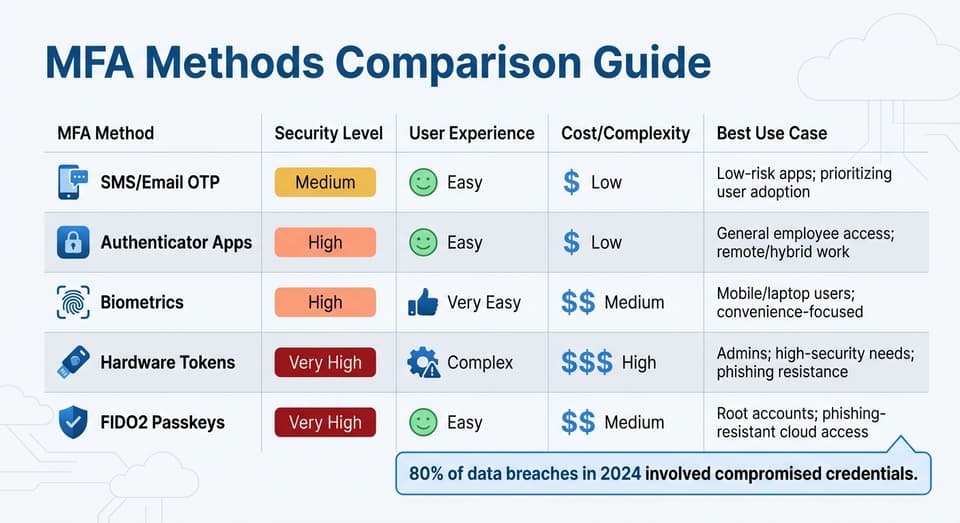
MFA Methods Comparison: Security Levels, User Experience, and Best Use Cases
When integrating automated workflows and threat response, choosing the right Multi-Factor Authentication (MFA) methods is a critical step in strengthening your cloud security. Each MFA method should align with specific use cases: for example, phishing-resistant hardware tokens are ideal for critical accounts, while authenticator apps or biometrics work well for general access. The goal is to match the method to the risks and workflows of different user groups, ensuring compatibility with tools like AWS CLI or Terraform for seamless credential management.
Compare MFA Methods by Use Case
MFA methods vary in their balance of security and convenience. Here’s how they stack up:
- SMS and Email Codes: These are straightforward but vulnerable to SIM swapping, making them suitable for low-risk applications.
- Authenticator Apps: These generate time-based codes (TOTP) and offer a stronger layer of security without significant cost.
- Biometrics: Fingerprint or facial recognition provides high security combined with excellent usability, especially for mobile devices.
- Hardware Tokens and FIDO2 Passkeys: These use public key cryptography, offering the highest level of protection against phishing and replay attacks. AWS recommends these methods for root accounts and privileged administrators due to their robust security.
To illustrate:
| MFA Method | Security Level | User Experience | Cost/Complexity | Best Use Case |
|---|---|---|---|---|
| SMS/Email OTP | Medium | Easy | Low | Low-risk apps; prioritizing user adoption |
| Authenticator Apps | High | Easy | Low | General employee access; remote/hybrid work |
| Biometrics | High | Very Easy | Medium | Mobile/laptop users; convenience-focused |
| Hardware Tokens | Very High | Complex | High | Admins; high-security needs; phishing resistance |
| FIDO2 Passkeys | Very High | Easy | Medium | Root accounts; phishing-resistant cloud access |
In 2024, compromised credentials accounted for 80% of data breaches, underscoring the importance of advanced MFA methods like hardware tokens and passkeys.
Assign Authentication Methods Based on User Roles
Once you’ve grasped each method's trade-offs, you can assign MFA methods tailored to user roles. This ensures a balance between security and usability:
- Root and Super Admin Accounts: Use hardware security keys (FIDO2) exclusively for maximum protection.
- IT and Cloud Administrators: Opt for phishing-resistant options like hardware tokens or passkeys due to their elevated access privileges.
- Remote Employees: Authenticator apps with push notifications provide secure and convenient access across BYOD and managed devices.
- Contractors and Vendors: For temporary access, authenticator apps or SMS codes work well, offering easy provisioning with clear audit trails.
- Restricted Environments: In areas where mobile devices are not allowed, hardware TOTP tokens are essential.
Conclusion
Automating MFA for cloud security transforms a crucial security measure into a smooth and scalable defense system. By using automated workflows, you can ensure consistent enforcement across all environments while minimizing disruptions for DevOps teams. Key steps include assessing your current MFA setup, setting up risk-based policies, integrating threat detection, and choosing the right MFA method based on user roles.
"MFA on the CLI adds friction. But that friction is what stands between an attacker with stolen access keys and your production infrastructure." – Nawaz Dhandala, OneUptime
This approach not only strengthens infrastructure security but also ensures ongoing compliance with regulations like HIPAA, NIST, and PCI DSS. Automation eliminates the need for manual token management while keeping you aligned with these standards. Organizations that integrate security automation into their DevOps workflows have seen measurable benefits, such as reducing network security change SLAs by up to 90% through automation. Temporary MFA-authenticated credentials, valid for up to 36 hours, provide robust security without frequent interruptions.
To get started, consider using wrapper scripts for CLI access, adopting Policy as Code for centralized policy enforcement, and applying compensating controls - like IP restrictions for service accounts that can't use interactive MFA - to secure non-interactive processes. This approach supports a security posture that grows with your infrastructure while allowing your team to focus on more strategic tasks. To see how these strategies apply to your specific environment, you can schedule a demo with our security experts.
FAQs
How do I automate MFA for AWS CLI without breaking CI/CD?
Automating Multi-Factor Authentication (MFA) for the AWS CLI in a way that doesn't interfere with your CI/CD workflows requires a smart approach. One effective method is to use a script or tool that generates temporary credentials authenticated via MFA.
To keep things running smoothly, schedule this script to periodically update your ~/.aws/credentials file with refreshed credentials before your CI/CD jobs kick off. Additionally, configure your pipeline to call this script at runtime. This setup ensures secure and uninterrupted access to AWS resources while still enforcing MFA requirements.
Which MFA methods work best for automation and phishing resistance?
When it comes to safeguarding against phishing and supporting automation, two standout methods are FIDO2 security keys and biometric verification.
- FIDO2 Security Keys: These keys offer robust protection by requiring physical possession. Even if login credentials are compromised, an attacker would still lack the physical key, making phishing attempts nearly impossible.
- Biometric Verification: Using unique traits like fingerprints or facial recognition, biometrics adds a layer of security that's incredibly hard to breach. Since these traits are unique to each individual, they provide a reliable defense against unauthorized access.
Both methods not only strengthen security but also integrate seamlessly into automated processes, making them practical and reliable choices.
How can I enforce MFA everywhere while avoiding user lockouts?
To apply MFA across the board without risking user lockouts, focus on automating your MFA policies at scale. Leverage tools like scripting or infrastructure-as-code platforms (e.g., Terraform) to handle tasks such as enforcing MFA compliance, managing credential renewals, and addressing exceptions. Automation not only ensures consistent policy enforcement but also minimizes manual errors. Plus, it helps manage credential expirations and fallback options systematically, reducing the chances of accidental lockouts.